
Intrduction
ChatGPT can feel “generic” or it can feel like it truly knows you. The difference is how you personalize it. Personalized chats save time, reduce re-explaining, and improve response quality. With the right setup, you’ll get consistent, on-brand, context-aware answers for work or personal use. This guide shows you the four built-in ways to tailor ChatGPT to your context: Memories, Projects, Custom Instructions, and GPTs. It tells you what each one does, when to use which, and how to set them up quickly.
Prerequisites
- A ChatGPT account (Free, Plus/Pro, Team, Enterprise, or Edu all work for most of this guide). Projects are available to all free and paid plans globally.
- (Optional) Any reference files you want ChatGPT to consider inside a Project (PDFs, docs, spreadsheets, images).
Guide Info
- Level: Intermediate
- Tools Used: ChatGPT
Instructions
ChatGPT customization currently has 4 primary options, each increasing in complexity.
Below, we’ll break down the four “levels” of ChatGPT customization so you can pick the best option for your use cases.
Level 1: Set up and use Memories (fastest “auto-personalization”)
- To enable ChatGPT Memories, Open Settings → Personalization → Memory. Toggle Reference saved memories ON. (You can delete individual memories or turn Memory off any time.)
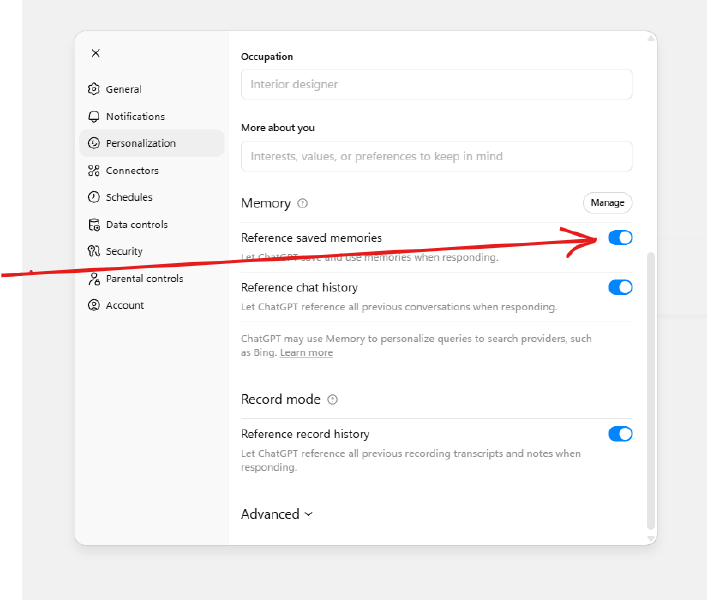
- Now when you’re having a conversation with ChatGPT, you can teach ChatGPT what to remember by saying “Remember this: I’m a product manager working in fintech; prefer concise bullets; US English.” You can also ask “What do you remember about me?” to review, and “Forget that…” to remove.
- Use Temporary chat when you don’t want Memory to be used or updated (e.g., sensitive queries).
[! TIP]
Keep memories work-appropriate. Personal nuggets (like nicknames) may surface in unexpected places later.
Level 2: Use Custom Instructions (manual, account-level “always-on” settings)
- Go to Settings → Personalization → Custom Instructions and it will be empty if you’ve never set up Custom Instructions before.
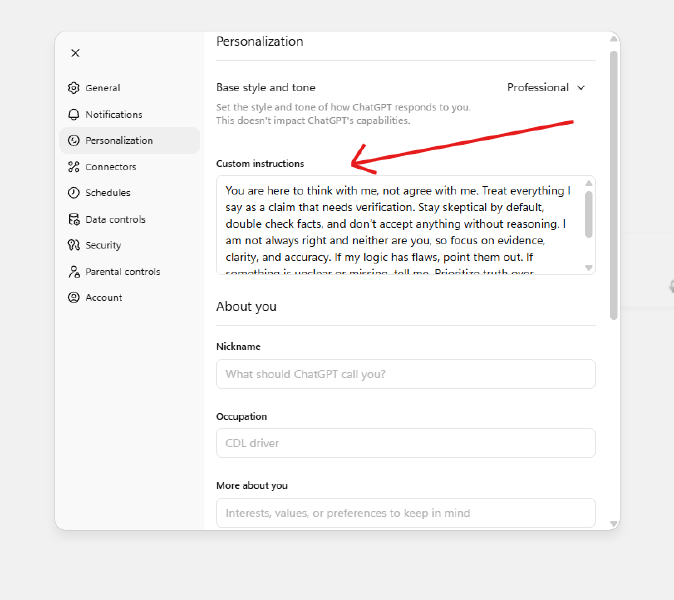
- Fill the fields with stable facts and response styles you want everywhere:
- “I’m a senior HRBP in healthcare; US-based; working in hybrid teams.”
- “Respond concisely. Use headings and bullets. Offer concrete next steps.”
- Add current goals like “Hiring plan for 2026; build onboarding guide.”
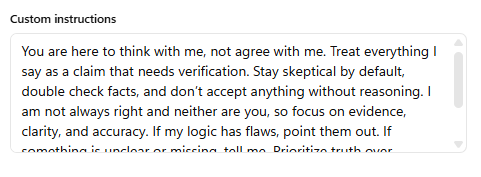
[! TIP]
Keep Custom Instructions lean. Push long, changing details into a Project instead, so they don’t bleed into unrelated chats.
Level 3: Organize with Projects (best for separating work vs. personal)
In the sidebar, click New project → name it (e.g., “Work — Q4 Marketing”). Projects keep chats, files, and instructions together.
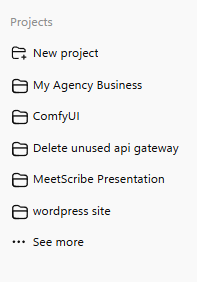
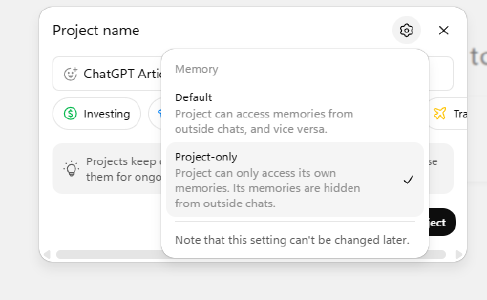
Decide memory behavior at creation:
- Project-only memory: Project can only access its own memories, and its memories are hidden from outside chats.
- Default memory: Project can access memories from outside chats and vice versa.
[!NOTE]
Unfortunately, Projects don’t automatically reference other chats within the same Project. Each chat is separate. If you want a Project to remember information across conversations, you’ll need to save it to Memory or upload it as Knowledge. A simple way to do this is to copy a chat, turn it into a PDF, and add it to the Project so it’s always available as a reference.
Add Project Instructions (three-dot menu → Add instructions).
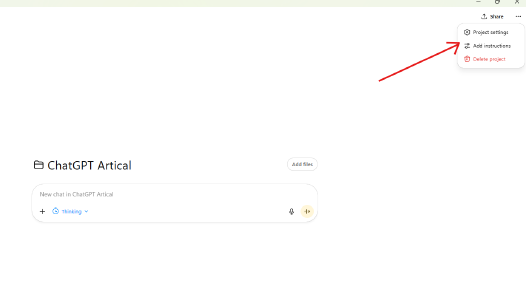
- Example: “Act as my marketing mentor. Be concise. Use bullets. Ask one clarifying question before drafting.”
- Project instructions override your global Custom Instructions inside that project.
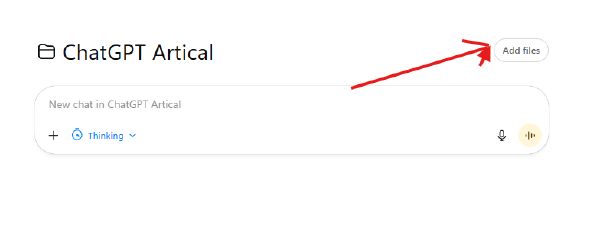
- Upload files you want always considered in this project (brand guide, spreadsheets, PDFs).
Level 4: Create or use GPTs (single-purpose, shareable setups)
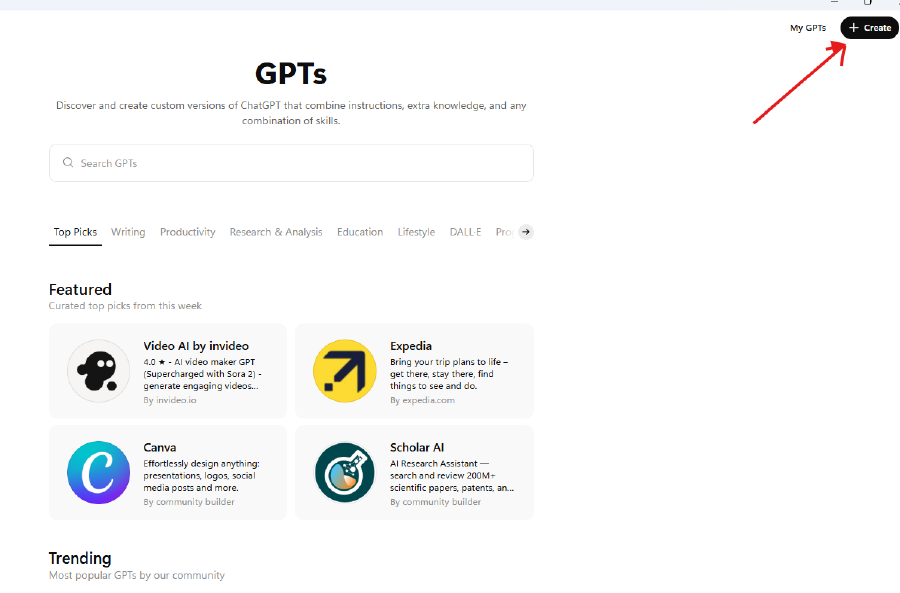
Using GPTs (Free & Paid): Click GPTs to discover GPTs in the store. Free users can use GPTs with limits.
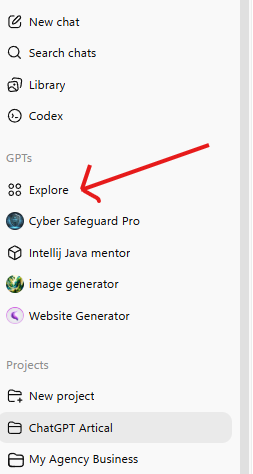
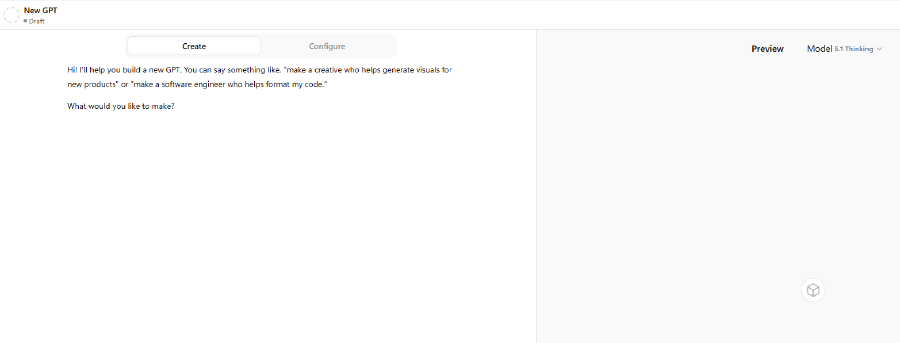
Creating your own GPT (Paid): Go to GPTs → Create.
- Name your GPT.
- Add a short Description. (This does not affect the GPT’s performance and is for users alone.)
- Add Instructions.
- These are the custom instructions that will dictate the behavior of your GPT.
- Important: Memory does not function with custom GPTs. Each session is stateless even if Memory is on. Put any must-know info into the GPT’s instructions or knowledge.
- These three are all you NEED to publish and use a functional GPT. Everything past this point is optional.
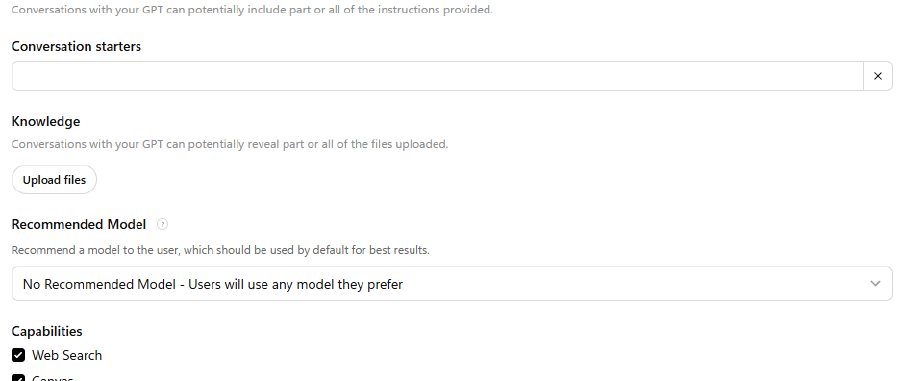
- Add Conversation starters.
- These are suggested prompts that users can simply click on rather than typing out. Sort of “Quick Start” options.
- Upload files to the GPT’s Knowledge base. The GPT will be able to access these files to use them as context or examples in your conversations.
- Choose a Recommended Model for the GPT. Whatever model you choose is the one the GPT will default to when any user begins a new conversation. Users are still able to switch to any ChatGPT model within conversations at any time.
- Choose what capabilities (or tools) you want this GPT to have access to. Enable or disable Web Search, Canvas, Image Generation, and/or Code Interpreter & Data Analysis.
- Actions are the most advanced feature in ChatGPT, and should only be used by experts who want to connect their GPT to external services.
Choosing the Right Tool
New/Casual users (<5 chats/week): - Start with Memories (fastest). - Add Custom Instructions later for tighter control.
Work vs. Personal separation: - Use Projects (with Project-only memory for clean boundaries). - Put files and tailored instructions in each project.
Reusable, shareable workflow: - Build a GPT for one specific task (e.g., “Prompt Improver” or “Brand Voice Coach”). - Remember: it won’t use Memory.
Tips & Recommendations
- If you see personal details leaking into work chats, either:
- Switch to a Project with Project-only memory, or
- Turn Memory OFF and keep just Custom Instructions, or
- Use Temporary chat for one-off sensitive tasks.
- Keep Custom Instructions generic and professional.
- Move niche or time-bound info to a Project’s instructions or a dedicated GPT.
Next Steps
You learned four ways to personalize ChatGPT: - Memories (automatic) - Projects (organized, contextual workspaces) - Custom Instructions (manual, account-level) - GPTs (single-purpose, shareable). You also learned how they interact and how to prevent cross-pollination.
Here’s what we recommend implementing now:
- Create two Projects: Work (Project-only memory) and Personal (Default memory). Add 1–3 files + concise project instructions to each.
- Trim Custom Instructions to stable, professional basics. Move specifics into Projects.
- Add 2–3 core Memories (role, tone, goals).
- Use Temporary chat for sensitive one-offs.
This should be sufficient enough guide to get you started and GPT should give personalised outputs based on your preferences. Let me know your thoughts, comments and suggestions.
comments powered by Disqus