
Intrduction
ChatGPT can feel “generic” or it can feel like it truly knows you. The difference is how you personalize it. Personalized chats save time, reduce re-explaining, and improve response quality. With the right setup, you’ll get consistent, on-brand, context-aware answers for work or personal use. This guide shows you the four built-in ways to tailor ChatGPT to your context: Memories, Projects, Custom Instructions, and GPTs. It tells you what each one does, when to use which, and how to set them up quickly.
Prerequisites
- A ChatGPT account (Free, Plus/Pro, Team, Enterprise, or Edu all work for most of this guide). Projects are available to all free and paid plans globally.
- (Optional) Any reference files you want ChatGPT to consider inside a Project (PDFs, docs, spreadsheets, images).
Guide Info
- Level: Intermediate
- Tools Used: ChatGPT
Instructions
ChatGPT customization currently has 4 primary options, each increasing in complexity.
Below, we’ll break down the four “levels” of ChatGPT customization so you can pick the best option for your use cases.
Level 1: Set up and use Memories (fastest “auto-personalization”)
- To enable ChatGPT Memories, Open Settings → Personalization → Memory. Toggle Reference saved memories ON. (You can delete individual memories or turn Memory off any time.)
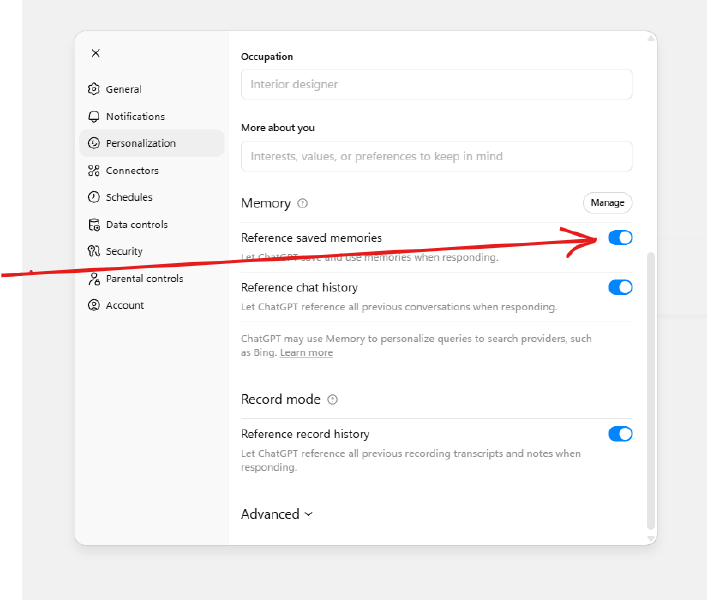
- Now when you’re having a conversation with ChatGPT, you can teach ChatGPT what to remember by saying “Remember this: I’m a product manager working in fintech; prefer concise bullets; US English.” You can also ask “What do you remember about me?” to review, and “Forget that…” to remove.
- Use Temporary chat when you don’t want Memory to be used or updated (e.g., sensitive queries).
[! TIP]
Keep memories work-appropriate. Personal nuggets (like nicknames) may surface in unexpected places later.
Level 2: Use Custom Instructions (manual, account-level “always-on” settings)
- Go to Settings → Personalization → Custom Instructions and it will be empty if you’ve never set up Custom Instructions before.
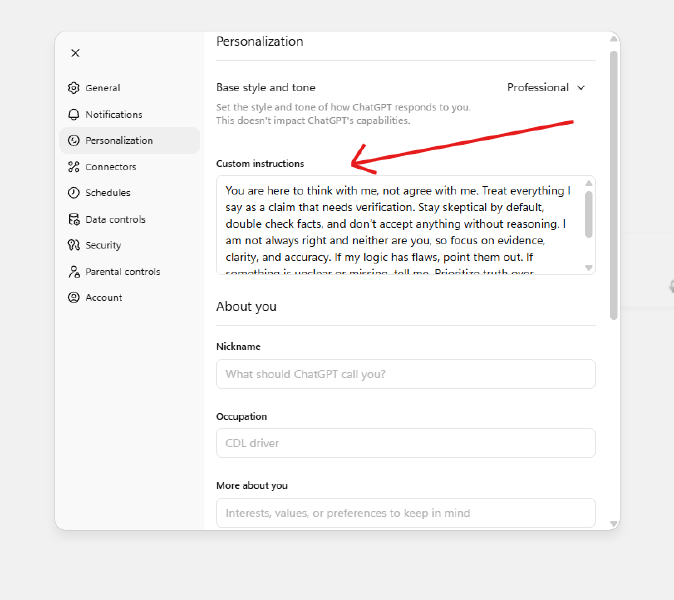
- Fill the fields with stable facts and response styles you want everywhere:
- “I’m a senior HRBP in healthcare; US-based; working in hybrid teams.”
- “Respond concisely. Use headings and bullets. Offer concrete next steps.”
- Add current goals like “Hiring plan for 2026; build onboarding guide.”
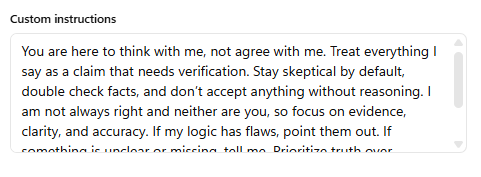
[! TIP]
Keep Custom Instructions lean. Push long, changing details into a Project instead, so they don’t bleed into unrelated chats.
Level 3: Organize with Projects (best for separating work vs. personal)
In the sidebar, click New project → name it (e.g., “Work — Q4 Marketing”). Projects keep chats, files, and instructions together.
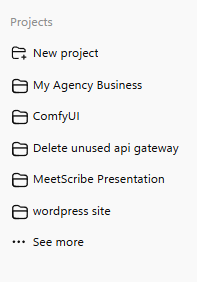
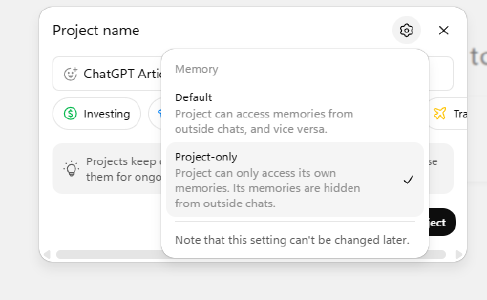
Decide memory behavior at creation:
- Project-only memory: Project can only access its own memories, and its memories are hidden from outside chats.
- Default memory: Project can access memories from outside chats and vice versa.
[!NOTE]
Unfortunately, Projects don’t automatically reference other chats within the same Project. Each chat is separate. If you want a Project to remember information across conversations, you’ll need to save it to Memory or upload it as Knowledge. A simple way to do this is to copy a chat, turn it into a PDF, and add it to the Project so it’s always available as a reference.
Add Project Instructions (three-dot menu → Add instructions).
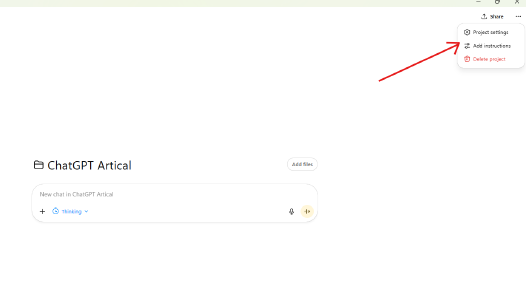
- Example: “Act as my marketing mentor. Be concise. Use bullets. Ask one clarifying question before drafting.”
- Project instructions override your global Custom Instructions inside that project.
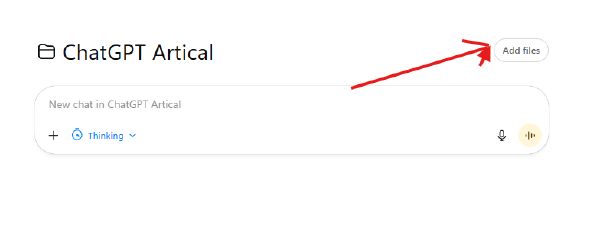
- Upload files you want always considered in this project (brand guide, spreadsheets, PDFs).
Level 4: Create or use GPTs (single-purpose, shareable setups)
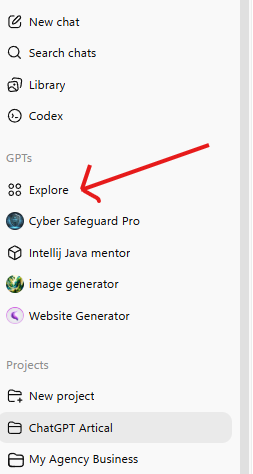
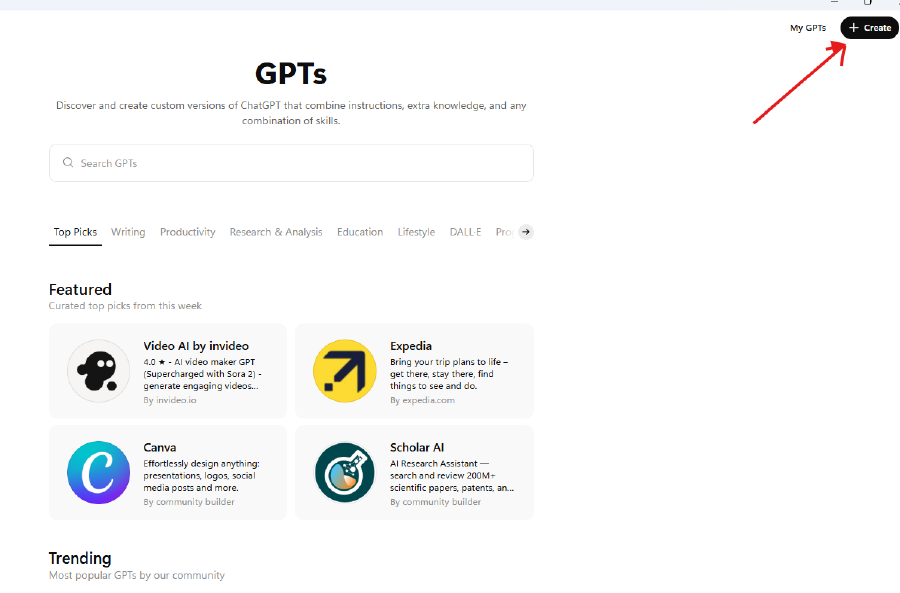
Using GPTs (Free & Paid): Click GPTs to discover GPTs in the store. Free users can use GPTs with limits.
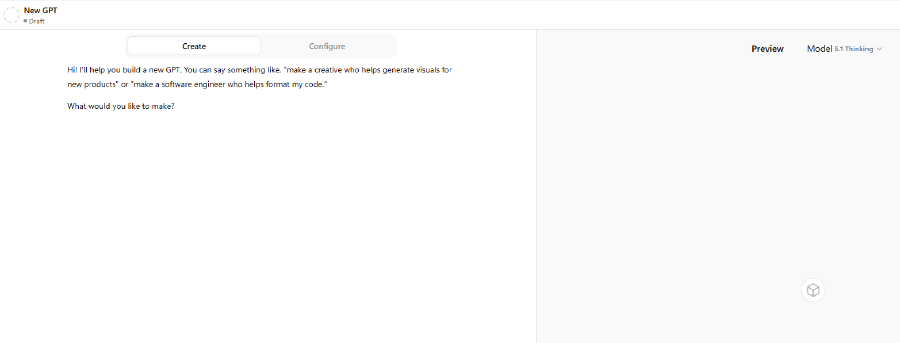
Creating your own GPT (Paid): Go to GPTs → Create.
- Name your GPT.
- Add a short Description. (This does not affect the GPT’s performance and is for users alone.)
- Add Instructions.
- These are the custom instructions that will dictate the behavior of your GPT.
- Important: Memory does not function with custom GPTs. Each session is stateless even if Memory is on. Put any must-know info into the GPT’s instructions or knowledge.
- These three are all you NEED to publish and use a functional GPT. Everything past this point is optional.
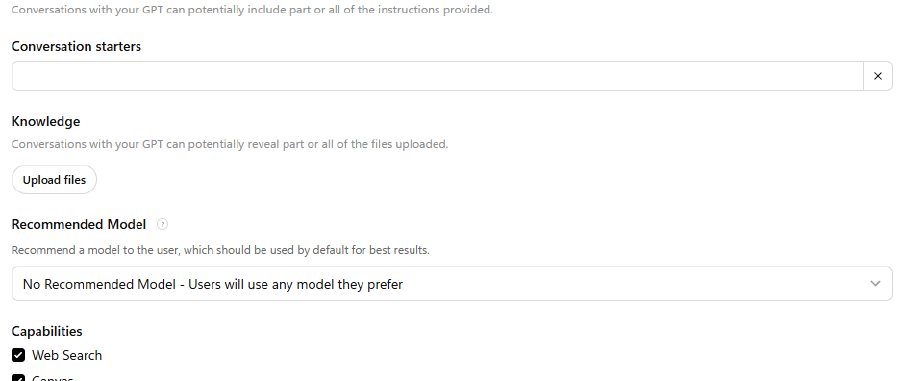
- Add Conversation starters.
- These are suggested prompts that users can simply click on rather than typing out. Sort of “Quick Start” options.
- Upload files to the GPT’s Knowledge base. The GPT will be able to access these files to use them as context or examples in your conversations.
- Choose a Recommended Model for the GPT. Whatever model you choose is the one the GPT will default to when any user begins a new conversation. Users are still able to switch to any ChatGPT model within conversations at any time.
- Choose what capabilities (or tools) you want this GPT to have access to. Enable or disable Web Search, Canvas, Image Generation, and/or Code Interpreter & Data Analysis.
- Actions are the most advanced feature in ChatGPT, and should only be used by experts who want to connect their GPT to external services.
Choosing the Right Tool
New/Casual users (<5 chats/week): - Start with Memories (fastest). - Add Custom Instructions later for tighter control.
Work vs. Personal separation: - Use Projects (with Project-only memory for clean boundaries). - Put files and tailored instructions in each project.
Reusable, shareable workflow: - Build a GPT for one specific task (e.g., “Prompt Improver” or “Brand Voice Coach”). - Remember: it won’t use Memory.
Tips & Recommendations
- If you see personal details leaking into work chats, either:
- Switch to a Project with Project-only memory, or
- Turn Memory OFF and keep just Custom Instructions, or
- Use Temporary chat for one-off sensitive tasks.
- Keep Custom Instructions generic and professional.
- Move niche or time-bound info to a Project’s instructions or a dedicated GPT.
Next Steps
You learned four ways to personalize ChatGPT: - Memories (automatic) - Projects (organized, contextual workspaces) - Custom Instructions (manual, account-level) - GPTs (single-purpose, shareable). You also learned how they interact and how to prevent cross-pollination.
Here’s what we recommend implementing now:
- Create two Projects: Work (Project-only memory) and Personal (Default memory). Add 1–3 files + concise project instructions to each.
- Trim Custom Instructions to stable, professional basics. Move specifics into Projects.
- Add 2–3 core Memories (role, tone, goals).
- Use Temporary chat for sensitive one-offs.
This should be sufficient enough guide to get you started and GPT should give personalised outputs based on your preferences. Let me know your thoughts, comments and suggestions.