You want to generate uncensored AI videos with control over the models and the creative workflow. Does that mean buying an expensive graphics card first? There are two ways to approach it: use a supported NVIDIA GPU you already own, or rent a GPU in the cloud and work through your browser.
The same Maestro video workflow can run on your local GPU or a rented cloud GPU. Pinokio handles installation and launch; Maestro brings video, image, and audio generation together with a director workspace and a timeline editor. With RunPod, the application and models run on the rented machine, so your own computer only needs to provide the browser interface.
I would start by choosing where the GPU should live, then aim for one finished clip: create a reference image, describe the motion, generate the video, and assemble it with audio. That gives you a useful production loop before expanding into character libraries, style adapters, or automated film planning.
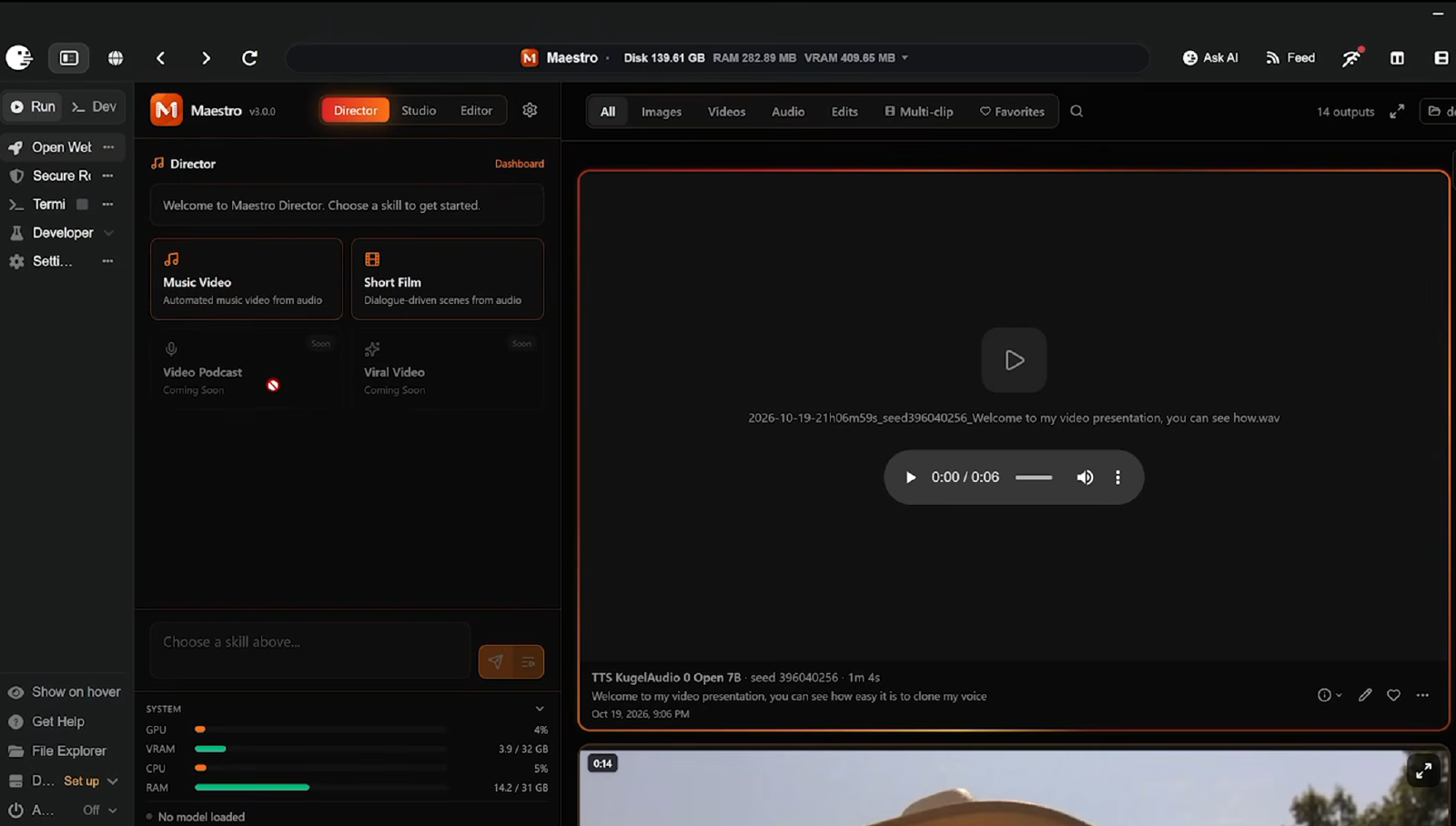
Maestro’s interface brings Director, Studio, and Editor into one workspace. Here, Director shows the Music Video and Short Film options alongside generated media.
What “uncensored” means in this workflow
Maestro is often described as an uncensored AI studio. The practical attraction is control over the application, the models you install, and the hardware executing the job. You do not have to send every generation through a hosted creative platform’s interface.
That description should not become a promise that every model accepts every request. Model capabilities, licences, and the rules of any infrastructure provider still matter. Nor does running an application on a rented GPU make the infrastructure yours or guarantee complete privacy.
For video generation, the key decision is where that creative workspace runs:
Local route
Your computer → Pinokio → Maestro → local NVIDIA GPU

Cloud route
Your browser → remote Linux desktop → Pinokio → Maestro → rented NVIDIA GPU
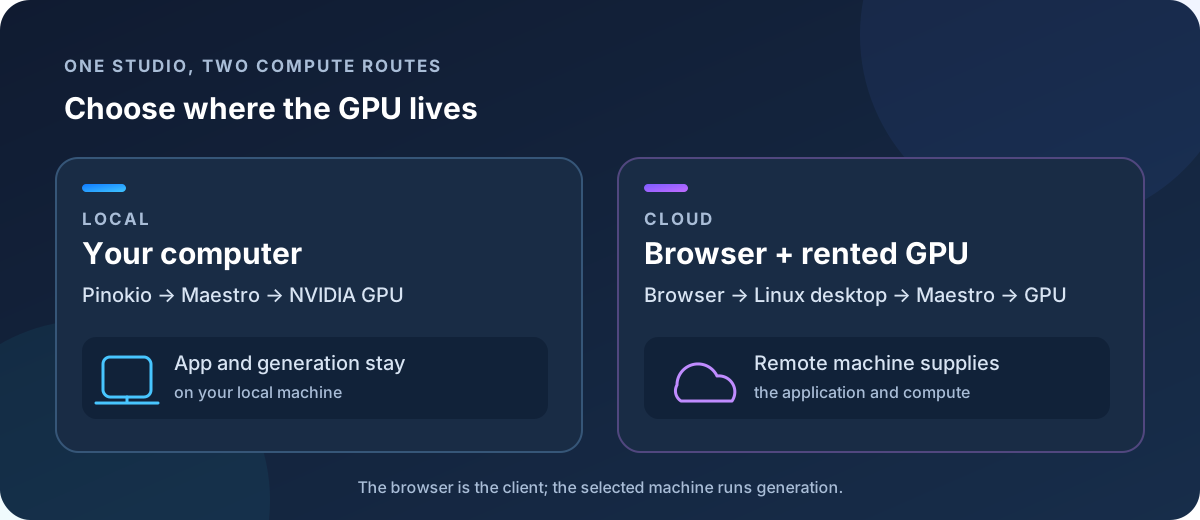
Pinokio installs and launches the application. Maestro provides the creative controls. The selected model performs the generation.
Local GPU or cloud GPU: which route should you choose?
Use your local GPU when you have supported hardware and want to experiment regularly. Rent a cloud GPU when your machine cannot run the models you want, or when you want to test the workflow before buying hardware.
The creative process stays similar in either case. What changes is where models download, where files are stored, and how you pay for the compute. Local generation uses your hardware, disk space, and electricity. Cloud generation adds GPU rental and storage costs, including the time spent setting up the environment.
If you already have a suitable NVIDIA machine, start with the local installation. If you need remote compute, follow the RunPod setup. Both routes lead to the same first-video workflow.
How much GPU memory do you need?
Pinokio’s operating-system support and Maestro’s GPU support are separate questions. A Pinokio download for your computer does not establish that every app in its catalogue will run there.
The Maestro requirements currently list Windows or Linux, an NVIDIA GPU with at least 6 GB VRAM, 16 GB system RAM, and 150 GB free disk space. The recommended configuration has substantially more headroom: 24 GB or more VRAM, 32 GB or more system RAM, and 500 GB free disk space. AMD GPUs and macOS are currently listed as unsupported.
The minimum is an entry point, not a guarantee for every video model or setting. Larger models, longer clips, and higher resolutions can change the memory demands considerably. A machine that can install Maestro may still be frustrating for the video work you want to do.
| Route | When I would choose it | What to account for |
|---|---|---|
| Local NVIDIA GPU | Repeated experimentation on hardware already available | VRAM, disk space, electricity, and generation time |
| Rented NVIDIA GPU | Testing a workflow before buying hardware, or accessing more VRAM | GPU runtime, downloads, storage, and transferring finished work |
| Mac or unsupported local GPU as browser client | Accessing Maestro through a remote Linux GPU machine | The remote GPU does the work; the browser does not remove its requirements |
Check the current requirements before committing to either route. Runtime and driver requirements can change independently of the interface.
Route 1: Generate AI videos on your local NVIDIA GPU
This route keeps Maestro, the downloaded models, and the generation workload on your own machine. Install the studio through Pinokio, then move straight to a small video test.
- Download Pinokio from its official website, choosing the installer for your operating system.
- Complete Pinokio’s initial setup and choose a location with room for application dependencies and models.
- Open the app catalogue and search for Maestro. Confirm the listing points to
Blizaine/Maestro. - Install the application and allow the required dependencies to finish installing.
- Start Maestro and wait for the application to become ready before opening its web interface.
The first installation and first generation are different stages. Installing the studio does not mean that every supported model is already on disk. Selecting a model and generating can trigger its download, so allow for network transfer and setup before judging inference speed.
This is the main convenience of the workflow: model acquisition is integrated into the studio instead of requiring you to arrange every file manually. It still consumes disk space and time.
Route 2: Rent a cloud GPU and generate through your browser
You can use this route even when your own computer lacks a supported NVIDIA GPU. RunPod supplies the remote GPU machine, and Pinokio runs inside a browser-accessible Linux desktop. Your computer supplies the screen, keyboard, and mouse; the remote machine runs Maestro and performs the generation.
The setup has four stages:
1. Deploy a compatible GPU pod
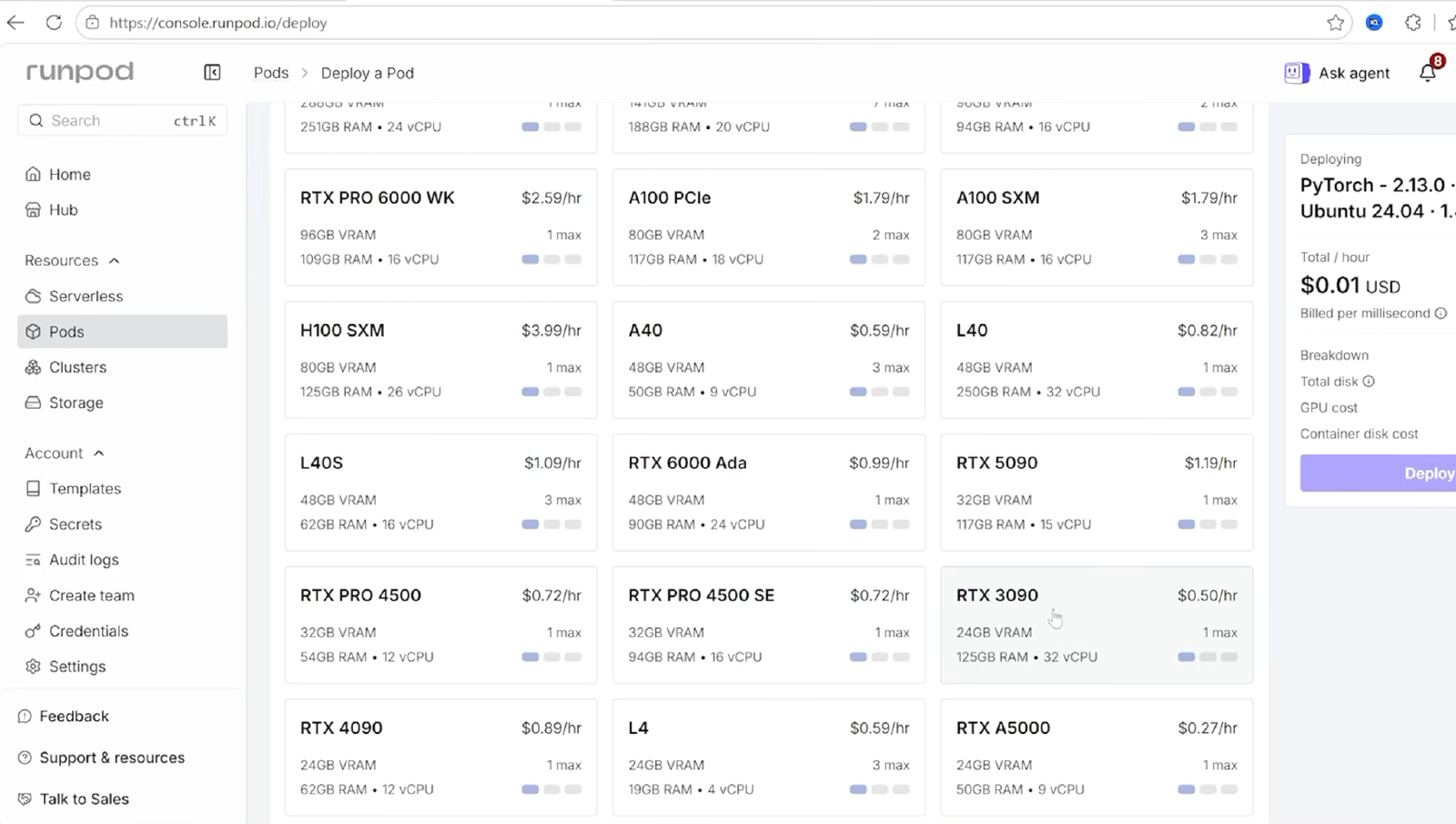
Compare GPU memory and rental rates on RunPod’s deployment screen. Prices and availability shown here are a snapshot; check the live quote before deploying.
In RunPod, open Pods → Deploy and choose the official PyTorch template with a compatible Ubuntu image. Before deployment:
- Select an NVIDIA GPU with sufficient VRAM for the intended model.
- Configure at least 150 GB of usable storage for the starting environment.
- Add HTTP port
6080for the browser desktop, retaining any ports the template already needs. - Match the driver, CUDA, and runtime requirements of the current Maestro installation.
CUDA 12.8 is a setup value used in this workflow, but it is not a universal requirement for every later release. The current project documentation describes newer hardware-specific runtimes too. Use the requirements for the version you are installing rather than choosing a container solely by its CUDA label.
GPU availability and rates change. Compare the live deployment quote, and remember that model downloads and environment setup occur while the pod is running.
2. Install the browser desktop and Pinokio
Once the pod is running, open its terminal. The desktop setup needs an XFCE desktop, a VNC server, and noVNC/websockify to present that desktop in a browser. On the Ubuntu-based pod, the package installation is:
export DEBIAN_FRONTEND=noninteractive
apt-get update
apt-get install -y \
  xfce4 xfce4-terminal dbus-x11 \
  tigervnc-standalone-server tigervnc-tools \
  novnc websockify wget curl pciutils dmidecode
These are remote-pod administration commands. Run them in the pod terminal, where this setup assumes root access.
Download the current Linux x64 .deb from the official Pinokio releases and install it on that remote machine. For example, after saving the package as /tmp/pinokio.deb:
apt-get install -y /tmp/pinokio.deb
Then configure the desktop session and password:
mkdir -p ~/.vnc /workspace/pinokio
vncpasswd
cat > ~/.vnc/xstartup <<'EOF'
#!/bin/sh
unset SESSION_MANAGER DBUS_SESSION_BUS_ADDRESS
exec dbus-launch startxfce4
EOF
chmod 700 ~/.vnc
chmod 600 ~/.vnc/passwd
chmod +x ~/.vnc/xstartup

vncserver :1 -geometry 1920x1080 \
  -localhost yes -xstartup ~/.vnc/xstartup
websockify --web=/usr/share/novnc 6080 localhost:5901
Keep that terminal running while using the desktop. The VNC server stays bound to localhost; websockify bridges it to the browser service on 6080. Keep the desktop password and pod connection address private.
3. Open the desktop and install Maestro
Use the pod’s HTTP service link for port 6080, adding /vnc.html if needed. Its address follows this pattern:
https://<pod-id>-6080.proxy.runpod.net/vnc.html
Connect using the VNC password. Inside the remote desktop, open a terminal and launch Pinokio. The root-container launch path uses:
pinokio --no-sandbox
That flag disables the application’s Chromium sandbox. It belongs to this container-specific launch path; I would not copy it into a routine local desktop launcher.
Choose /workspace/pinokio as Pinokio’s home when using storage mounted at /workspace. Finish its initial setup, search for Maestro, install it, and start its web interface just as with a local installation.
4. Decide what must survive the session
Persistent storage only protects files actually written to it. Installing Pinokio under /workspace/pinokio helps retain its application data when that mount is backed by storage you keep. Desktop packages installed on the container disk may need to be installed again after a restart.
A network volume can support reuse across compatible pods, but it must be attached to the replacement pod. Do not assume that creating one automatically moves all application files and outputs into it.
Download finished media, check the storage location, and stop paid compute when finished. Check RunPod’s current stop, termination, and storage behaviour before removing a pod; retained storage can continue to incur charges.
Generate your first uncensored AI video from reference frames
Once either GPU route is ready, the process converges in Maestro. Open Studio → Video → Frames to turn a reference image and motion description into a clip. The GPU’s location changes where the job runs, rather than what you are trying to create.
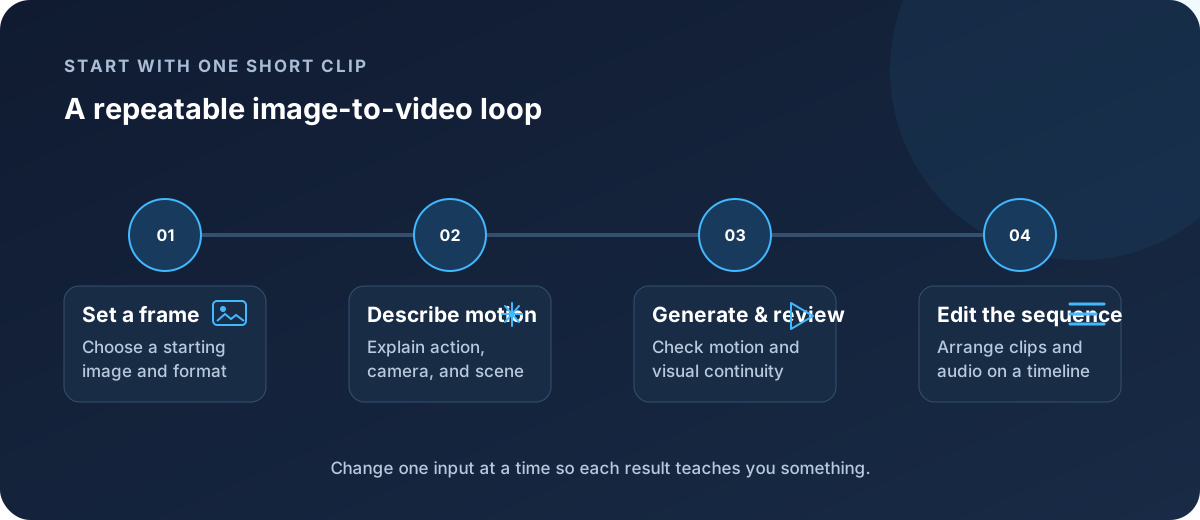
- Choose the video model. Start with a model or faster preset that fits the available GPU. The catalogue includes options such as MiniMax H3 and LTX; available variants change with releases.
- Add a starting image. Use a reference that establishes the subject, composition, and visual style. Add an ending image when you want to guide the destination of the shot and the chosen model supports it.
- Describe the movement. Explain what changes between frames: subject action, camera movement, and environmental motion.
- Choose the format. Use the intended aspect ratio, such as
16:9for a landscape sequence or9:16for a vertical clip. Select a short duration and manageable resolution for the first test. - Generate and inspect. Allow any first-use model download to finish. Check the resulting motion and continuity before making the task more demanding.
A faster four-step variant can be useful for iteration when available. Treat it as a model-specific option, rather than a guarantee of a fixed speedup on every GPU.
The first success criterion is simple: Maestro produces a playable clip from the selected inputs. After that, compare changes one at a time so you can tell whether the reference, motion description, or model choice improved the result.
Create reference images for a consistent video sequence
The Image workspace can supply starting frames and supporting artwork without moving to a separate application. Choose an image model, set the aspect ratio, describe the composition, and generate the frame before returning to Video.
Reference images and saved characters help carry a subject across related shots. Recipes provide access to style adapters such as LoRAs. These controls influence the output, but consistency still needs visual review: compare facial details, clothing, proportions, and lighting between shots.
I would settle on a usable reference image before introducing several recipes at once. A clear visual target makes it easier to judge whether the animation is following the intended direction.
Add audio and finish on the timeline
Maestro also exposes audio generation, speech tools, and voice cloning. For a personal narration workflow, the basic pattern is to supply a recording of your own voice, enter the text, and generate the audio. Listen to the result before placing it against the picture.
The timeline editor brings the generated media together. Add the clips and audio, arrange their timing, and add titles where needed. This matters because individual generations rarely form a coherent sequence simply by being placed back to back.
Director offers a broader planning route for a story or music-led production, including character references and generation stages. I would evaluate it after the manual clip workflow is reliable. An automated plan still needs review before committing to a long batch of generations.
Before scaling from one clip to a longer video
- The selected model fits the GPU at the intended resolution and duration.
- First-use downloads have completed, with enough disk space left for outputs.
- Starting and ending frames guide the shot as intended.
- Characters remain visually consistent across the clips worth keeping.
- Audio and picture work together on the timeline.
- Finished media is saved somewhere that survives the session.
You do not need to buy a new GPU before exploring this workflow. Start locally if your NVIDIA hardware fits the model, or rent enough cloud capacity to test the kind of video you want to make. Judge the result and the cost of producing it before committing to a larger setup.
The useful milestone is one completed sequence: generate a reference, animate it, review the motion, add audio, and finish the edit. Once that loop works, you have a practical basis for deciding whether your next video belongs on the GPU at your desk or one you rent for the session.